Strategies for Effectively Managing Terraform State
- maheshchinnasamy10
- May 5, 2025
- 2 min read
Terraform has become one of the most popular Infrastructure as Code (IaC) tools, streamlining how teams manage and provision cloud infrastructure. But at the heart of every Terraform deployment lies a critical file: the Terraform state file.
Without proper management, state files can become a major point of failure, causing resource conflicts, infrastructure drift, or even outages. In this post, we’ll break down key strategies for effectively managing your Terraform state and keeping your infrastructure safe, reliable, and scalable.
What is Terraform State?

The Terraform state file (terraform.tfstate) acts as a source of truth, mapping your Terraform configuration to real-world infrastructure.
Key facts:
Tracks resources, dependencies, and metadata.
Used by Terraform to decide what actions to take during plan and apply.
Can be stored locally or remotely — but remote is recommended for team setups.
6 Strategies for Effective Terraform State Management:
Use Remote State Storage
Never store state files locally in team environments. Remote backends centralize state management and reduce conflict risks.
Popular options:
AWS S3 (with DynamoDB locking)
Terraform Cloud
Azure Blob Storage
Google Cloud Storage
Example (AWS S3 Backend):
Terraform State File Commands:
terraform {
backend "s3" {
bucket = "my-terraform-state"
key = "env/prod/terraform.tfstate"
region = "us-west-2"
dynamodb_table = "terraform-lock"
encrypt = true
}
}
The provided Terraform code configures a remote backend using AWS S3 and DynamoDB for storing and managing Terraform state files.
This configuration ensures that your Terraform state is:
Stored remotely and securely in S3 (not on local disks).
Protected from accidental overwrites and concurrent modifications using DynamoDB state locking.
Encrypted at rest for security.
Organized by environment or project via the key path.
Enable State Locking
State locking prevents concurrent operations that can corrupt your state file.
Supported by:
Terraform Cloud (automatically)
S3 with DynamoDB
GCS buckets
Use Workspaces for Environment Separation
Instead of multiple configurations, use Terraform workspaces to manage different environments (dev, staging, prod) with isolated state files.
Commands:
terraform workspace new staging
terraform workspace select staging
terraform apply
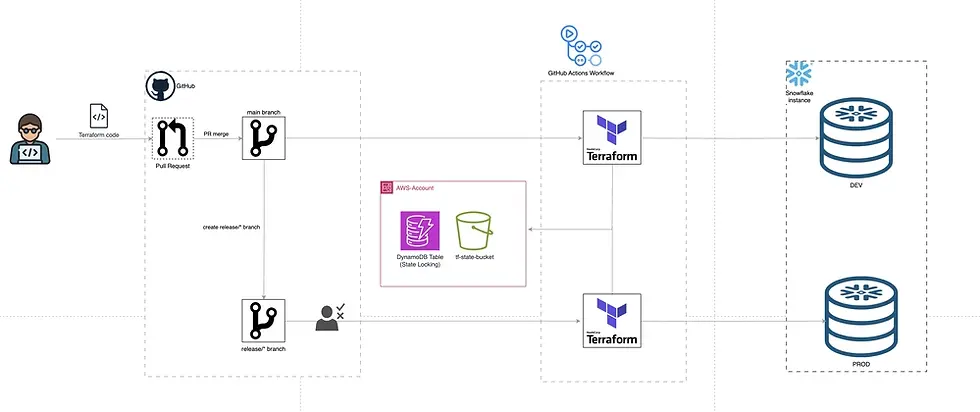
separate environments branching from a single config Encrypt State Files
State files can contain sensitive info like IP addresses and credentials. Always encrypt your state files.
Tips:
Enable encryption at rest for cloud storage (e.g., AWS S3, Azure Blob).
Use Terraform Cloud’s built-in encryption.
Regularly Back Up State Files
Enable automatic backups to recover from accidental deletions or corruption.
Examples:
Enable versioning on your AWS S3 bucket.
Use Terraform Cloud’s state history feature.
Avoid Manual State Edits
Directly editing the .tfstate file is risky. Use Terraform’s built-in commands:
terraform state mv — to move resources.
terraform state rm — to safely remove resources from state.
Conclusion:
Effectively managing Terraform state is vital for modern infrastructure workflows. By implementing these strategies, you can:
Avoid conflicts.
Reduce risks of infrastructure drift.
Keep your deployments safe and reliable.


Comments